

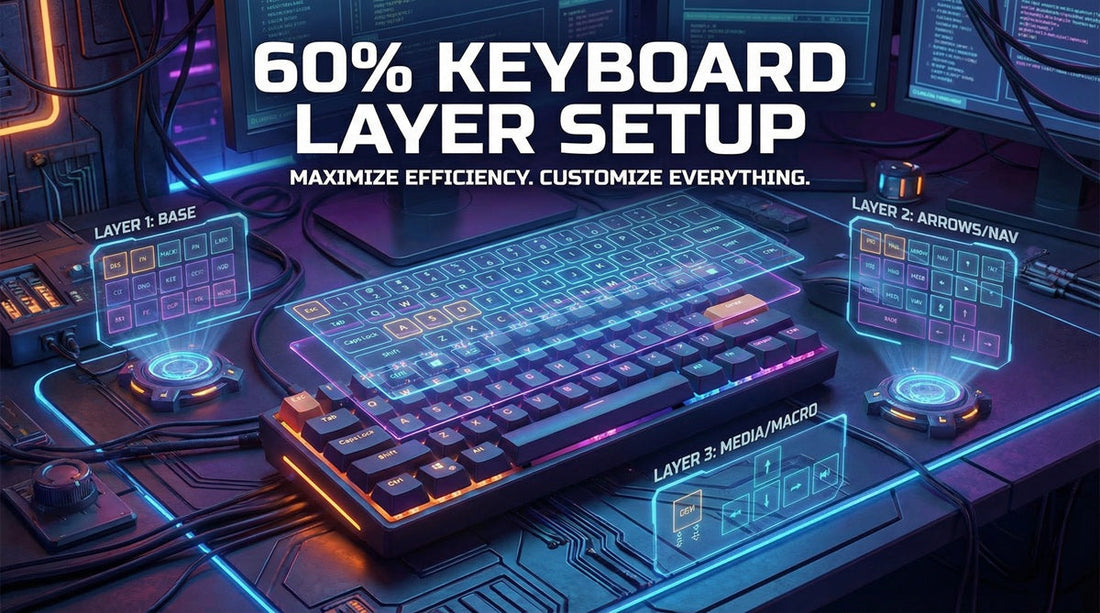
You’ve just set up your sleek, compact mechanical keyboard. It looks incredible on your desk, saving space and offering that satisfying "thock" sound. But then, you reach for the arrow keys to edit a line of code or navigate a spreadsheet, and your hand hits nothing but air.
Welcome to the world of compact layouts. For beginners, the lack of physical navigation keys can feel like a productivity killer. However, once you understand the logic behind layers, you will realize it’s actually a superpower.
A well-designed 60% keyboard layer setup allows you to access every function of a full-sized keyboard without ever lifting your hands from the home row. It turns your keyboard into a cockpit of efficiency. In this guide, we will break down the smartest mapping strategies to help you type faster and work smarter.

Description: An infographic illustrating the concept of "stacking" functions on a single key. The 'J' key is highlighted showing it acts as 'J' on tap, and 'Left Arrow' when Fn is held.
Why Layer Logic is the Secret to Efficiency
Think of layers like the "Shift" key on a standard keyboard. When you hold Shift, "1" becomes "!". Compact keyboards simply extend this logic. By holding a designated "Fn" (Function) key, your alpha keys transform into arrows, F-keys, or media controls.
The goal isn't just to cram keys in; it is to reduce finger travel distance. On a full-sized keyboard, moving your hand to the arrow cluster takes time and breaks your flow. With a smart layer setup, the arrows come to you.
This is particularly crucial for creating an efficient keyboard layout for programmers, where navigation and symbol usage are constant. Plus, modern keyboards like the NPKC RO75 PRO Mechanical Keyboard support advanced software like QMK and VIA, making these customizations effortless.
The "Home Row" Philosophy: Navigation Made Easy
The biggest hurdle for 60% users is the missing arrow cluster. The most popular solution is bringing navigation to the home row or right hand.
1. The IJKL Mapping (The Gamer/Generalist Choice)
Mapping your arrow keys to I (Up), J (Left), K (Down), and L (Right) is intuitive because it mimics the inverted-T shape of physical arrow keys.
- Fn + I: Up Arrow
- Fn + J: Left Arrow
- Fn + K: Down Arrow
- Fn + L: Right Arrow
This setup allows you to keep your right hand in a natural typing position while navigating.
2. The VIM Style (HJKL)
For developers who live in code editors, the HJKL layout is legendary. It forces your fingers to stay strictly on the home row, minimizing movement. If you are building an efficient keyboard layout for programmers, this is often the gold standard.
3. WASD Integration
Gamers are already used to WASD for movement. Mapping Fn + WASD to arrows makes the transition to a 60% board seamless for gaming veterans.

Description: A visual representation of the right hand resting on the IJKL keys, with arrows superimposed to show the mapping logic.
F-Row and Media: Smart Fn Key Mapping Ideas
Once navigation is solved, you need to tackle the Function row (F1-F12) and media keys. Here is where many standard layouts fail, but you can succeed with custom logic.
The Number Row Solution
The most standard approach is mapping Fn + 1 through = to F1 through F12. This is simple, but requires a stretch.
The "Macro Pad" Cluster
Some users prefer to map a cluster on the right side. For example:
- Fn + U/I/O: Volume Down/Mute/Volume Up
- Fn + P: Play/Pause
- Fn + Backspace: Delete (Crucial for 60% boards that lack a dedicated Del key)
These Fn key mapping ideas ensure you can control your music or hop on a Zoom call without hunting for buttons.
QMK Layers Guide: Taking Control with Software
Hardware is only half the battle. To truly master layers, you need a keyboard that supports QMK or VIA, such as the NPKC RO75 PRO. While the RO75 PRO is a 75% keyboard (meaning it retains the F-row and arrows), it is the perfect device to practice layer logic because it allows you to supercharge your workflow.
For example, you can use the RO75 PRO to program a "Work Layer" where your NumPad acts as a macro pad for Excel shortcuts, or a "Gaming Layer" that disables the Windows key and moves map controls closer to WASD.
For a deeper dive into setting this up, check out our Beginner’s Guide to VIA.
Advanced QMK Features: Mod-Tap and Toggle
If you are using a QMK-compatible board, you can utilize advanced features:
- Mod-Tap (MT): This is a game-changer. You can set your Caps Lock key to act as "Caps Lock" when tapped, but act as "Fn" (Layer 1) when held down. This puts the layer toggle right under your pinky finger.
- Layer Toggle (TG): Unlike holding a key (Momentary), this switches the layer permanently until pressed again. Great for switching to a dedicated number pad layer for data entry.
Comparison: Common Layer Setups
Here is a quick comparison of popular layouts to help you decide which fits your workflow.
| Layout Style | Arrow Mapping | Best For | Learning Curve |
|---|---|---|---|
| Standard 60% | Fn + WASD | Gamers transitioning to compact | Low |
| Vim Style | Fn + HJKL | Programmers & Linux Users | High (unless you know Vim) |
| Right Cluster | Fn + IJKL / PL;' | Writers & General Typists | Medium |
| Tap Arrow | R-Shift, R-Ctrl, R-Alt, Menu | Those who refuse to use Fn | Medium |
User UGC: How Real Users Map Their Boards
COMMUNITY SPOTLIGHT
User: DevMike_99
Setup: "I use the NPKC RO75 PRO. Even though it has arrows, I mapped Caps Lock to Fn. Now, Caps + I/J/K/L are my arrows. I never have to move my right hand to the bottom corner anymore. It increased my coding speed by at least 15%."
User: SarahDesigns
Setup: "I’m a graphic designer. I created a specific layer for Photoshop. Fn + Q is Save for Web, Fn + W is Undo. I grouped all my macros on the left side so my right hand never leaves the mouse."

Description: A lifestyle shot showing the product in a realistic environment, emphasizing its compact nature while retaining necessary keys (75% layout).
Why the NPKC RO75 PRO is the Best of Both Worlds
While mastering 60% layers is a valuable skill, sometimes you just need the physical keys. This is why the 75% layout has become the "end-game" for many.
The NPKC RO75 PRO Mechanical Keyboard offers:
- Physical Arrow Keys & F-Row: No layers required for basic navigation.
- Full Programmability: Use the 60% keyboard layer setup logic on top of the physical keys for maximum speed.
- Knob Control: Dedicated volume/media knob, freeing up layer space.
It essentially gives you the safety net of a larger keyboard with the programmable power of a compact enthusiast board.
FAQ: Common Questions About Keyboard Layers
Q: Is it hard to get used to a 60% keyboard layer setup?
A: It usually takes about one to two weeks of consistent use. Using a "keymap visualizer" on your screen initially can help you memorize the positions.
Q: Can I use these layer tricks on the NPKC RO75 PRO?
A: Absolutely! Since the RO75 PRO supports VIA/QMK, you can program it exactly like a 60% board, but with the added bonus of having extra physical keys when you need them.
Q: What is the best Fn key position?
A: For many, the Caps Lock key is the best position (converted via software) because it is easily reached by the left pinky without moving the hand.
Ready to Optimize Your Typing Experience?
Don't let a standard layout hold you back. Experience the perfect balance of compact design and functionality.
Shop the NPKC RO75 PRO Mechanical Keyboard today.
Buy Now & Customize Your Workflow